
Account registration guide and FAQ
Creating your account takes a few minutes. The most important choice is how you sign in, because you'll use the same way every time.
Create your account
Start from the welcome screen
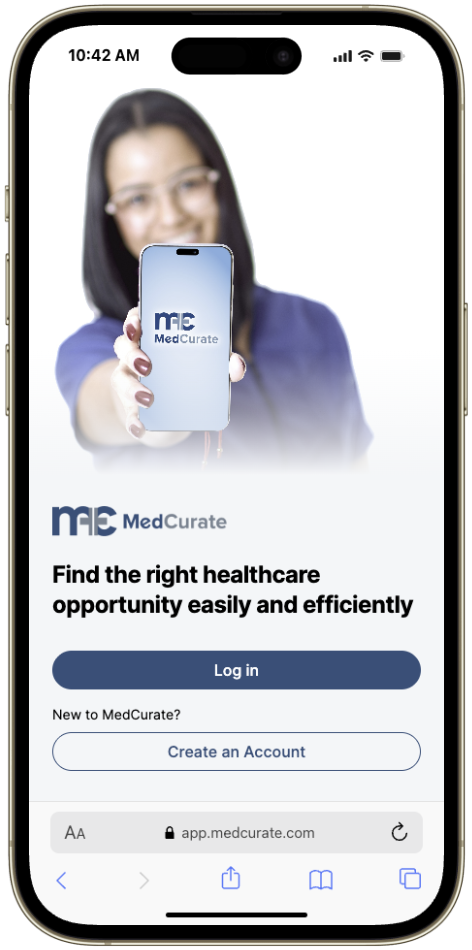
Go to app.medcurate.com. If you’re new, tap Create an Account. If you already have an account, tap Log in.
Choose how you'll sign in
You can sign up with an email and password, or tap Continue with Google or Continue with Apple. Pick one and remember it. You’ll use the same one every time you log in.
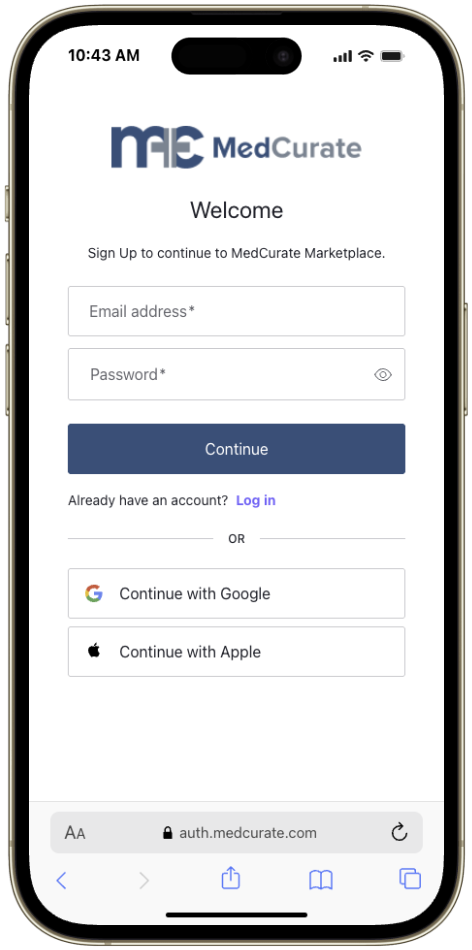
Which one should I pick? If you tap Google or Apple, you sign in with your Google or Apple account, so MedCurate never has a password for you. If you use an email and password, you create a new password just for MedCurate. Neither is better. What matters is that you log in the same way later.
If you use an email and password, your password needs at least 8 characters and at least 3 of these: lowercase letters, uppercase letters, numbers, and special characters like !@#. Tap Continue when you’re done.
Verify your email
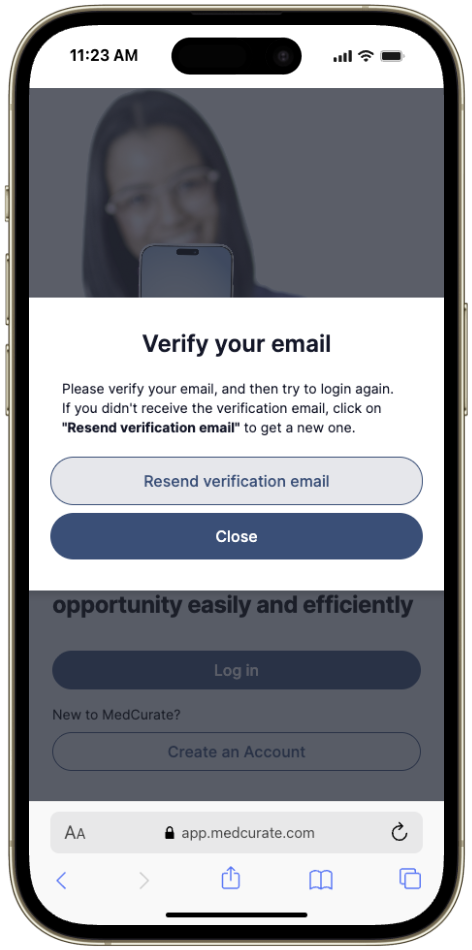
After you sign up, the app asks you to verify your email. You can’t log in until you do. Check your inbox. If the email doesn’t show up, tap Resend verification email and check your junk folder too. Tap Close to go back to the welcome screen.
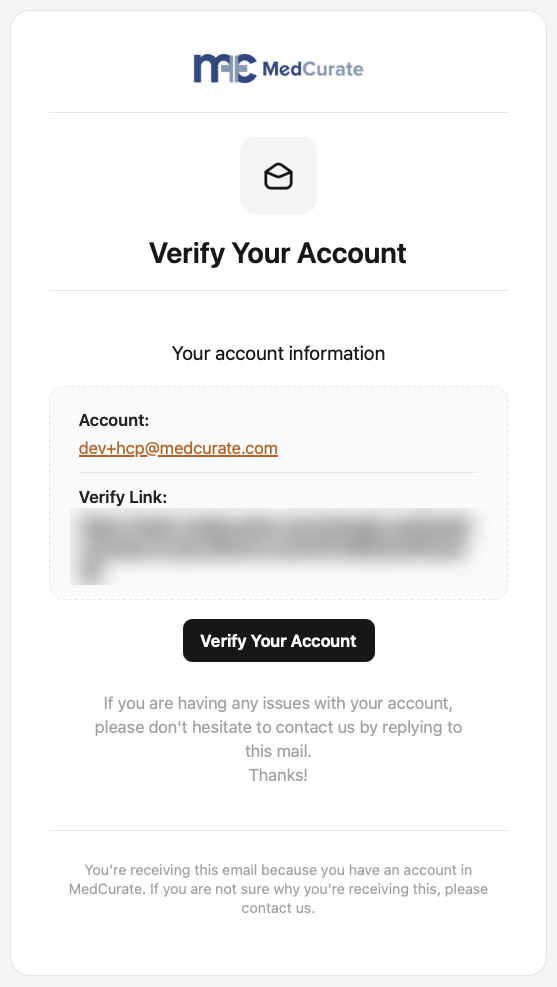
Open the email and tap Verify Your Account
The email comes from MedCurate and is titled Verify Your Account. It shows the email address of your new account. Tap Verify Your Account.
Go back to MedCurate
You’ll see Email Verified. Tap Back to MedCurate Marketplace.
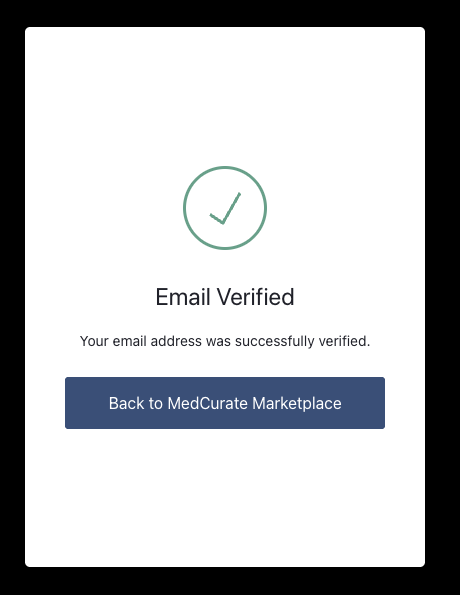
Log in
This takes you back to the same welcome screen you started on. That’s normal. Your account is ready, so tap Log in and sign in the same way you signed up.
FAQ
Sign-up says "Something went wrong, please try again later"
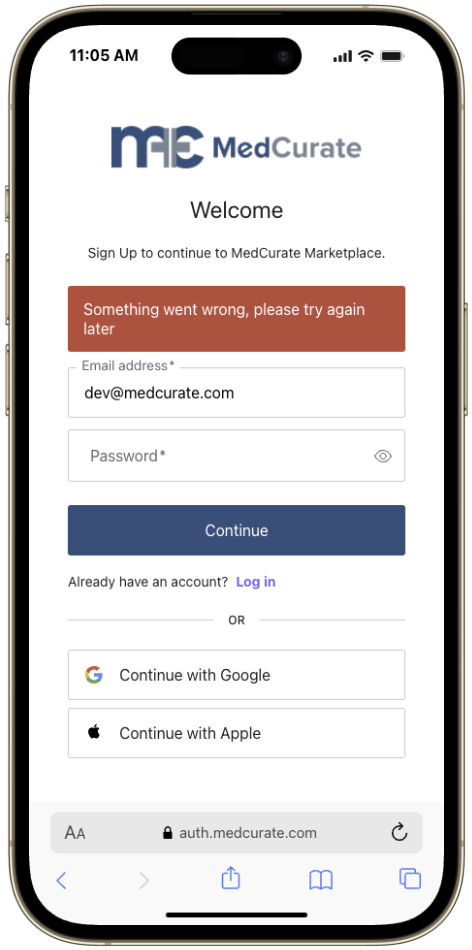
Check your email address for typos, then try again with a longer password that mixes upper and lower case letters, numbers and special characters. Avoid common words. If it keeps happening, contact us with the email address you’re using and we’ll look into it.
I verified my email and I'm back at the welcome screen. Did it work?
Yes. After you verify, the app returns you to the welcome screen where you started. Tap Log in and sign in the same way you signed up.
I didn't get the verification email
Check your junk or spam folder. You can also tap Resend verification email on the Verify your email message. Make sure you typed your email address correctly.
I signed up with Google or Apple. Why doesn't my email and password work?
When you sign up with Google or Apple, you don’t have a MedCurate password. To log in, tap Continue with Google or Continue with Apple again, the same one you used the first time.
I signed up with an email and password. Why does Google or Apple show me an empty account?
Google and Apple sign-ins are separate from an email and password sign-in, even when the email is the same. If you use a different way to log in than you used to sign up, you can end up in a new, empty account. Log out and sign in the way you first signed up. If you already created a second account by mistake, contact us and we’ll help.
I used Google to sign up. Can you reset my password?
You don’t have a MedCurate password to reset. Google keeps your password. Tap Continue with Google to log in. If you’ve forgotten your Google password, reset it with Google.
How do I know which way I signed up?
Think about the first screen you used. If you tapped a Google or Apple button, that’s your way to log in. If you typed an email and made a password, use those. Still not sure? Contact us and we’ll tell you which sign-in your account uses.
I think I have two accounts. What should I do?
Don’t create another one. Contact us with the email addresses you used and which sign-in options you tried, and we’ll help you get back to the account with your information.
Contact support
Email support@medcurate.com or call (913) 912-6633.
Include your name and the email on your MedCurate account so we can help faster.