
Payments update setup guide and FAQ
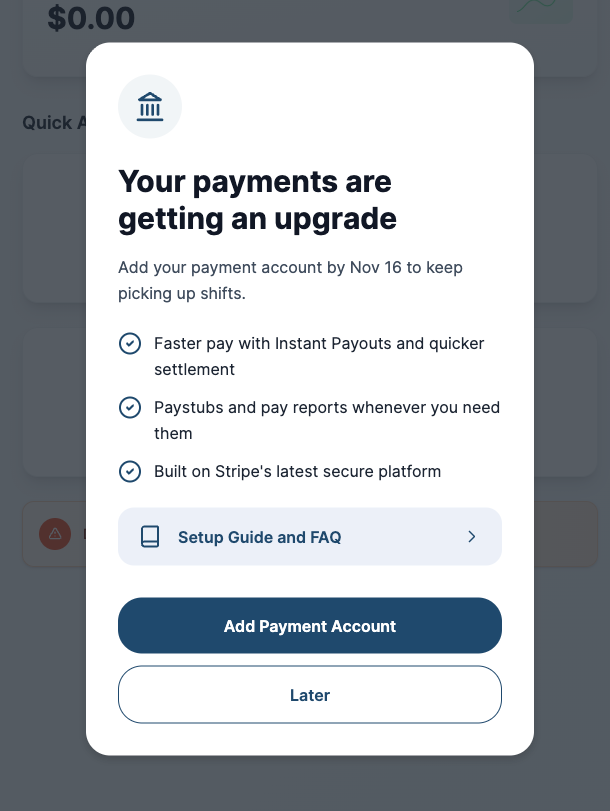
MedCurate payments now run on Stripe's latest secure platform. To keep picking up shifts, add your payment account by November 16. Setup takes a few minutes in the app.
What’s new
- Faster pay. Instant Payouts and quicker settlement get your money to you sooner.
- Pay reports and tax documents. Your reports and tax forms live in your Stripe account, so proof of pay and your 1099 are there when you need them.
- A secure platform. Setup happens in the app, on Stripe’s latest secure platform.
Setup guide
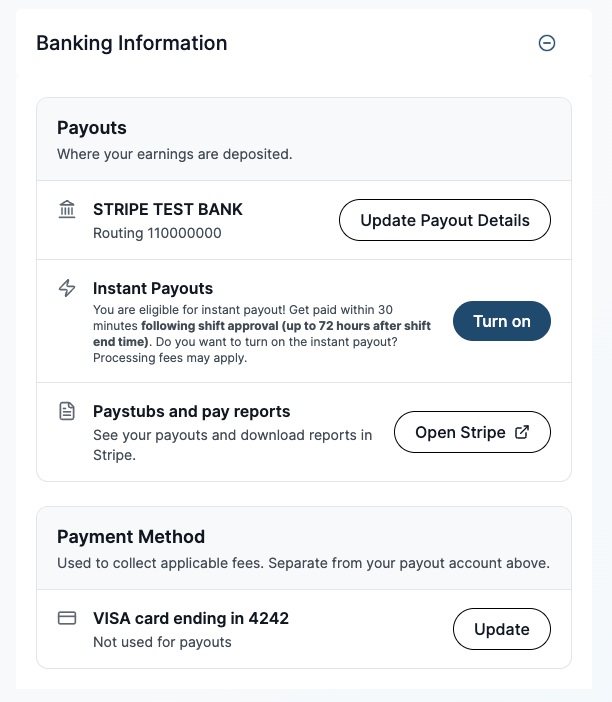
Your banking screen has two sections. Payouts is where we send your earnings, and you already have it. Payment Method is new. It’s used to charge applicable fees, and it’s separate from your Payouts.
Start from the prompt
When you open the app, tap Add Payment Account. It takes you straight to your banking screen with the Payment Method section open. You can also get there anytime from Profile Settings, then Banking Details.
Choose Card or US bank account
Select Card or US bank account, then enter the details. For a bank account, enter your email and name, then search for your bank and follow the prompts to connect it.
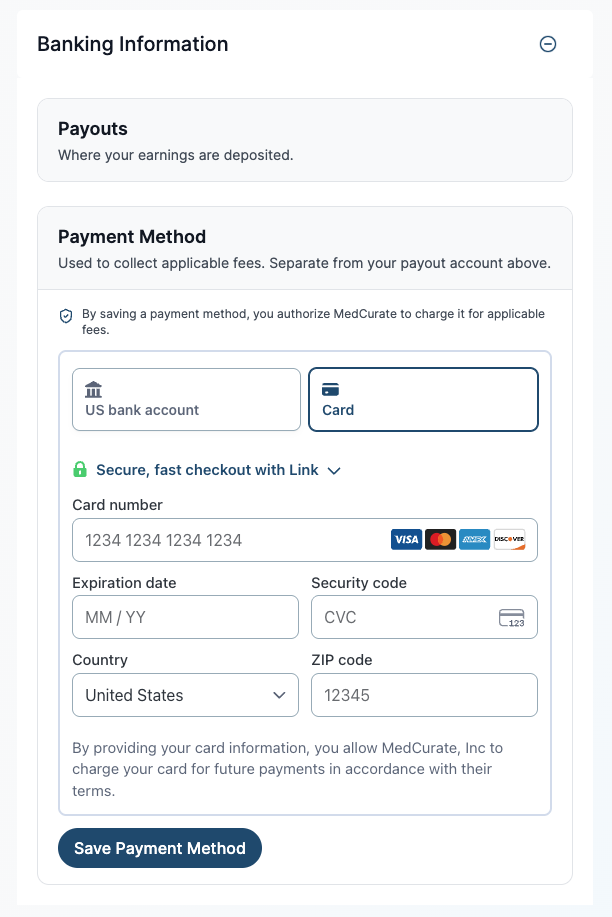
Card 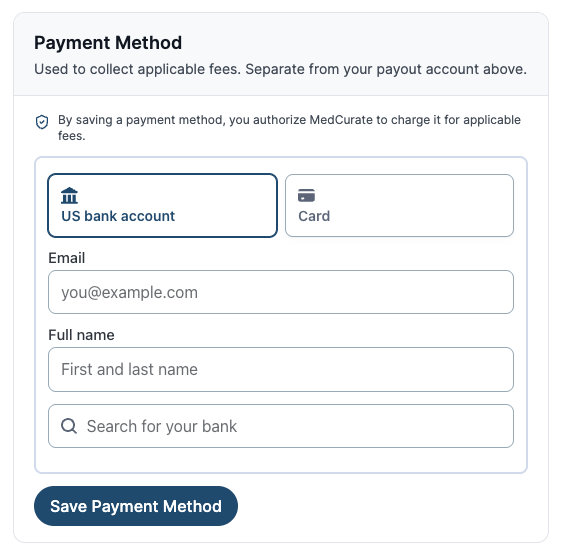
US bank account What is Link? On the Card tab you’ll see Secure, fast checkout with Link. Link is Stripe’s optional tool for saving your card so you can check out faster on other sites that accept Link. You don’t need it for MedCurate. To skip it, just fill in the card details below it. If you opened it, close it with the X.
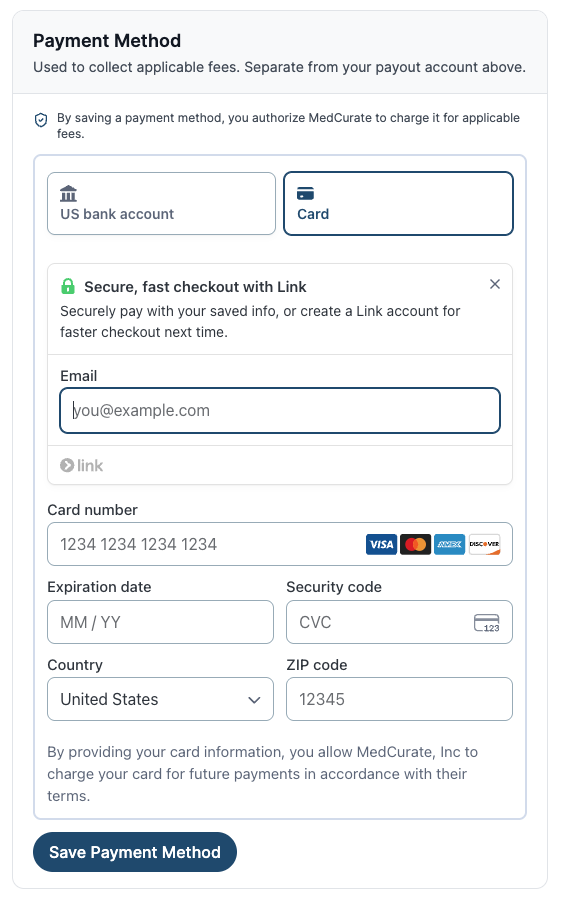
The Link option, opened. It's optional. Save your payment method
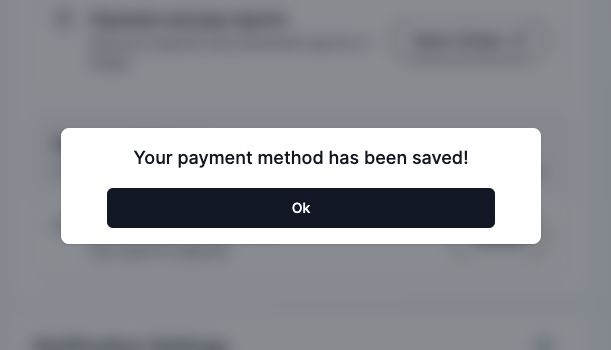
Under Payment Method you’ll see a note that saving it authorizes MedCurate to charge it for applicable fees. Review the note, then tap Save Payment Method and you’ll see a confirmation. Once it’s saved, your card or bank account shows in the list with an Update button.
Review your Payouts
Look over the bank details under Payouts. This is where your earnings are sent, and it’s also where you update them if your banking details ever change. Select Update Payout Details to make a change.
You’re all set when you see your payment method saved and your bank details under Payouts. There’s nothing else to do.
Features and management
Turn on Instant Payouts
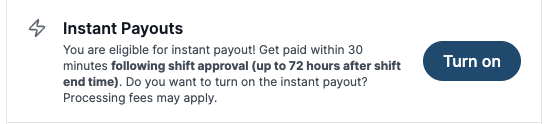
Instant Payouts is optional. If your bank supports it, you’ll see Turn on next to Instant Payouts under Payouts. Select it to opt in. Once it’s on, your earnings are sent to your bank in about 30 minutes after your payment is released. Processing fees apply. Read more on Stripe.
See your pay reports and tax documents
Your reports live on Stripe, and MedCurate links you straight to Stripe’s secure login. Under Payouts, select Open Stripe and sign in with the email on your Stripe account. Depending on your account, you’ll find your payment history, reports such as a balance summary and payout details, and your tax forms.

Confirm your Stripe email
Each year, MedCurate sends your 1099 through Stripe to the email on your Stripe account. Open Stripe and check that the email listed is one you can access and want tax forms sent to. Update it there if it has changed.
Update your payment method later
Select Update next to your payment method under Payment Method. Cards expire, so it’s a good idea to update it when you get a new one.
FAQ
Why am I being asked to add a payment method?
Fees covered by your Network Agreement used to come out of your Stripe balance. Stripe changed how balances work, and with faster payouts there often isn’t a balance left to collect from. A payment method on file solves that.
What will be charged to it, and when?
Only applicable fees under your Network Agreement, for example a late cancellation or a no call no show. Please see your agreement for the details. Nothing is charged just for adding a payment method.
Do I have to do this?
Yes. After November 16 you won’t be able to pick up new shifts until your payment account is set up. Shifts you’ve already booked are not affected.
Setting it up also upgrades your account right away to Stripe’s latest platform, the one that powers all of MedCurate’s new payment features.
Should I use a card or a bank account?
Either works. Choose the one you’ll keep up to date, and update it if it changes or expires.
What is Link, and do I need it?
Link is Stripe’s optional checkout tool. It saves your payment details so you can reuse them on other sites that accept Link. You don’t need it for MedCurate. If you’d rather not use it, enter your card details directly.
Is my information safe?
Your payment details are handled by Stripe, a payments provider used by millions of businesses. MedCurate does not store your card or bank numbers.
Will this change how I get paid?
Your payouts keep going to the bank account you have on file. Completing setup also moves your account to Stripe’s latest platform.
How do I get Instant Payouts?
Instant Payouts is available, but it’s optional. You turn it on yourself under Banking Details, then Payouts, and it works if your bank supports it. Processing fees apply. Read more on Stripe.
Is there a fee for Instant Payouts?
Yes. Stripe charges a fee for each Instant Payout, currently 1% of the payout. When you turn on Instant Payouts, a confirmation screen links to Stripe’s details on the fee.
If you’d rather not pay it, leave Instant Payouts off and your standard payouts continue as usual.
I don't see the Instant Payout button
Instant Payouts is an opt-in feature that depends on your bank. If you don’t see the button, your bank may not support it yet, and your standard payouts continue as usual.
Where do I find my 1099?
If you earned enough during the tax year to receive a 1099, a copy is emailed to the email address on your Stripe account each year by January 31.
You can also download it from Stripe. Under Payouts, select Open Stripe, sign in, and go to Tax forms. Stripe may ask for the last four digits of your SSN or EIN first.
Make sure the email on your Stripe account is one you can access, and check that your name and tax ID are correct before the end of the year.
Stripe is asking me to choose an account type. What should I pick?
It depends on how you’re set up for work. Choose the individual option if you haven’t registered a business, which is the case for most providers. Choose the company option only if you have a legal entity such as an LLC or corporation. If you do, have your EIN and registration details ready.
Not sure? Stripe explains the options in selecting a business type and structure, or you can ask your accountant.
I can't finish setup or something failed
Try again in a few minutes. If it still doesn’t work, contact us and include a screenshot if you can.
Stripe required notices
Stripe processes payments for MedCurate, and it’s updating its legal terms. Here’s what to know.
Stripe Services Agreement, effective January 6, 2027
Stripe is updating the online Stripe Services Agreement that applies to your Stripe account. By keeping your Stripe account open after January 6, 2027, you agree to the updated terms.
If you don’t accept the updated terms, contact MedCurate at support@medcurate.com before that date and we’ll explain your options.
Stripe Privacy Policy, effective November 20, 2026
Stripe is updating its Privacy Policy. No action is needed. You can read the updated policy at stripe.com/privacy.
Contact support
Email support@medcurate.com or call (913) 912-6633.
Include your name and the email on your MedCurate account so we can help faster.